
If a SFTP cannot be used, it is possible to upload with Microsoft Azure App Services
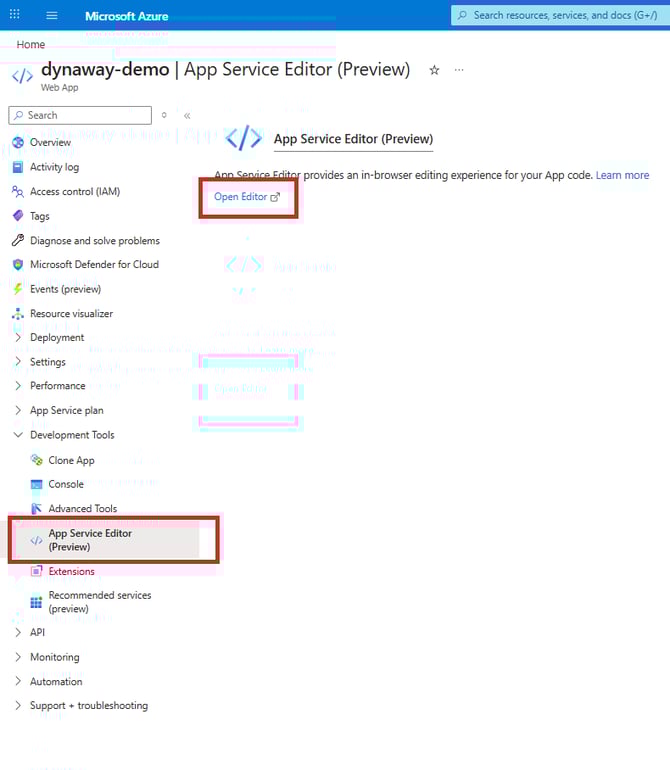
Under App Services/Development Tools/App Services Editor (Preview)
Open Editor
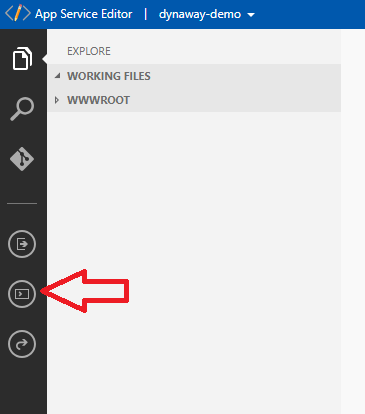
In the App Service Editor Open Console
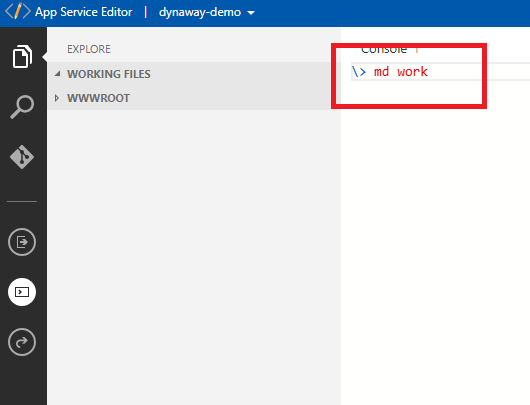
In Console make directory for work, scheduling and floor-plan
\> md work
\> md scheduling
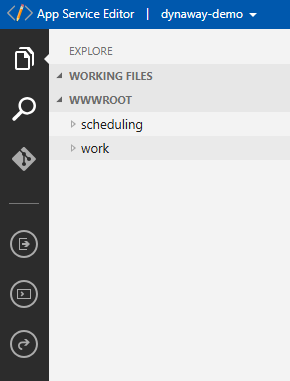
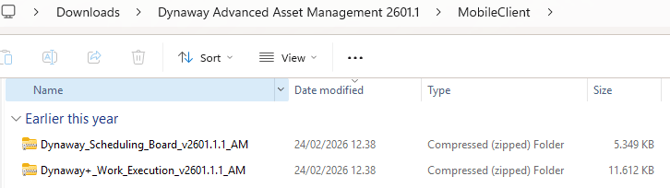
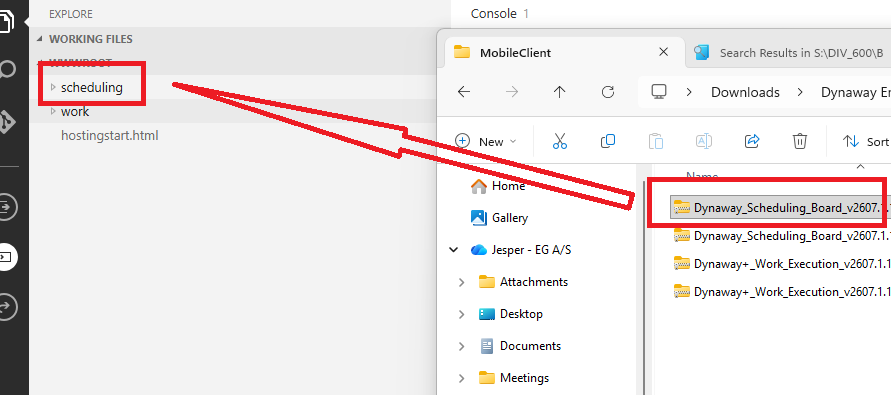
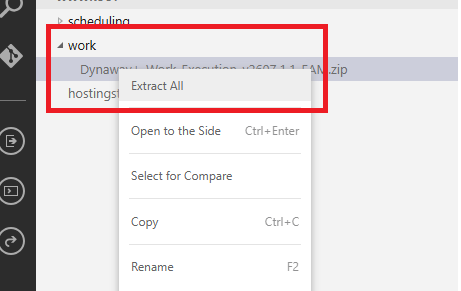
Drag and drop the Compressed (zipped) folder from Dynaway Advanced Asset Management/MobileClient/Dynaway+_Work_Execution to App Services Edit folder work then Extract All. The same must be done with the Scheduling-Board folder
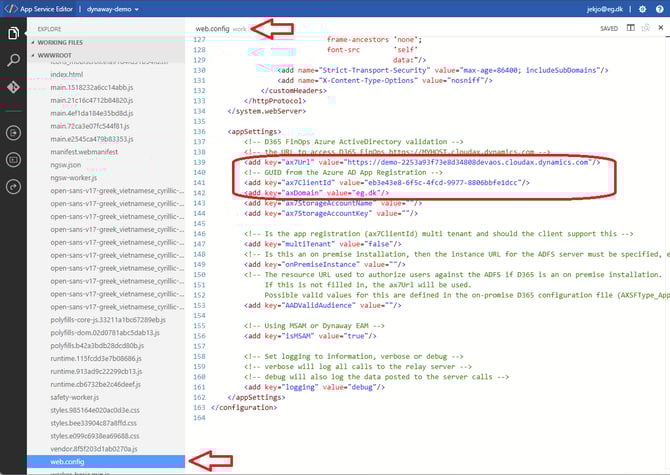
When the Zipped folders are uploaded and extracted, does the web.config file need to be configured?
Basically 3 things that need to be changed.
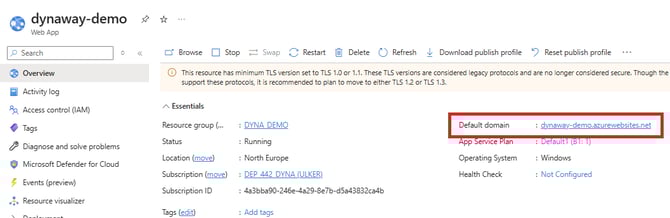
ax7Url -
<add key="ax7Url" value="https://contoso-test.sandbox.operations.dynamics.com" /> -
The URL for the Dynamics 365 for Finance and Operations environment or Azure App Services
ax7ClientId -
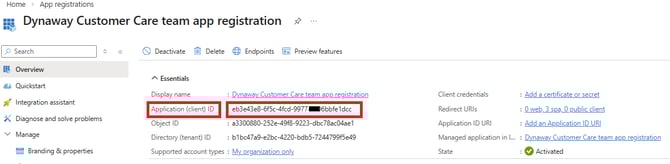
<add key="ax7ClientId" value="b097fac0-deae-4959-9791-53bcb40a9909" /> -
This ID is the application ID of your App registration, and it can be found in the Azure portal by navigating
to Microsoft Azure Portal > Microsoft Entra ID > Manage > App registrations > Application ID.
axDomain -
<add key="axDomain" value="contoso.com" />
Define the Active Directory domain name for the users
who should be able to log in on the Mobile Client.
The configured appSettings section can be copied and used in all web.config files
For Work Execution and Scheduling Board. (Floor-plan is from version 2604.1 a part of Work)
The web.config file must be configured before it is uploaded to an environment. Before the files are uploaded, for example with an FTPS client.