Maintain & deploy Dynaway package for PPAC environments
You will be getting a Deployable package and a Unified package from Dynaway. The unified package will contain pre-built models code, which can be added straightaway to your custom metadata in source control.
Contact Dynaway to get unified package required for PPAC environments.
PAC CLI
Since the unified package that will be given by us, will not be a straight converted unified package it is recommended to convert our deployable package to unified package and use it if you are going to follow PAC CLI based deployment
ModelUtil.exe -convertToUnifiedPackage -file=”C:\{pathToPackage}\[DeployablePackageFileName].zip” -outputpath=”C:\{pathToOutputUnifiedPackage}”
Install Power Platform CLI
For Windows, Power Platform CLI can be installed using the Microsoft-provided MSI installer.
Microsoft documentation: https://learn.microsoft.com/en-us/power-platform/developer/howto/install-cli-msi
After installation, verify that pac is available:
pac
You can also update the CLI to the latest version using:
pac install latest
Microsoft currently notes that certain pac package commands, including pac package deploy, are available on Windows because of their .NET Framework dependency.
Authenticate to the Environment
Once PAC CLI is installed, authenticate against the target Dataverse environment:
pac auth create --environment https://<environment>.crm.dynamics.com/
This creates an authentication profile for the target environment.
You can then use that authentication context for the deployment.
Deploy the Package
Once authentication is completed, deploy the package using:
pac package deploy --logConsole --package "C:\Path\To\YourPackage.dll"
For example:
pac package deploy --logConsole --package "C:\Users\Admin\Documents\UDEPackage\CloudDeployablePackage\TemplatePackage.dll"
CI/CD Pipelines
You can manually copy the pre-built model code for each model contained in the unified package given by us and put it in your source control where you CI/CD pipeline is already configured or if you don’t have one, follow this Microsoft documentation below to create and maintain CI/CD pipelines. There is an explicit step to add license file in the pipeline too and the license should be added against "Dynaway Common" model.
Continuous integration and deployment - Power Platform | Microsoft Learn
Visual studio
Copy the prebuilt model folders from the unified package given, to your custom metadata path in your local system where the VS XPP metadata is configured.
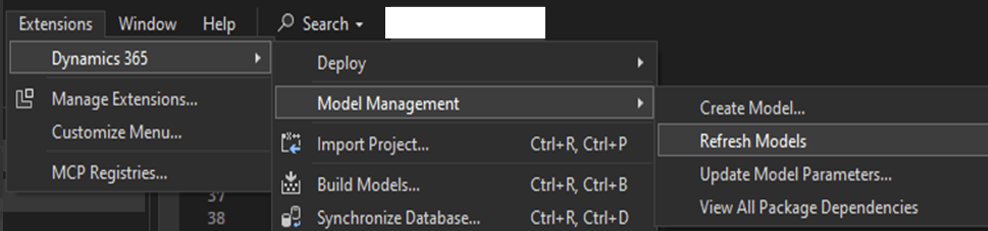
Once the model folders are copied to your custom metadata folder you should Refresh Models, your UDE instance should now be able to see the new model
License
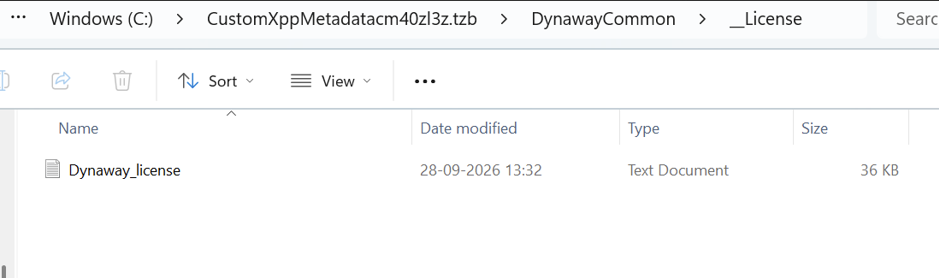
Paste the license file from Dynaway under a new folder "__License" under Dynaway Common model
Then you will be able to deploy models to an online environment straightaway, or you can build the models and deploy the model at last as part of the build process itself.

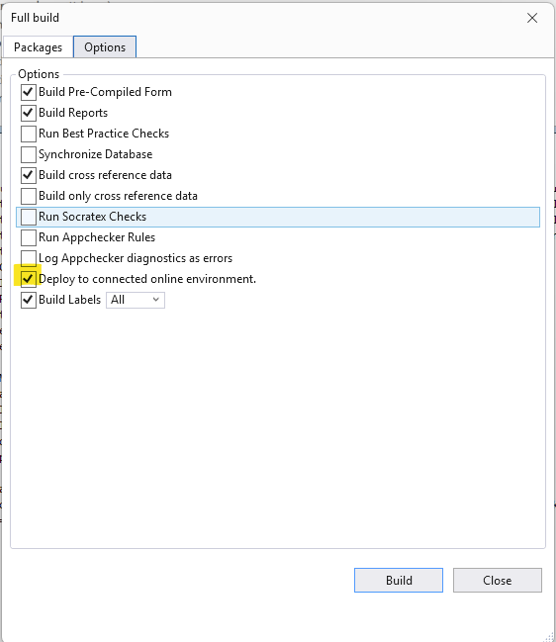
It's recommended to do a DB synchronization separately.
Remove existing models from environments
Sometimes, when we update our core models from Dynaway side, we might make some existing models expire, in the case of LCS based deployment there was a ModuleToRemove.txt script we tend to use. But in the case of PPAC environments there is two ways,
Through Visual studio
If you have a UDE instance connected to a VS, we can remove it directly using the "Delete models from Online Environment" option. Then a DB sync should fix it.
Through Finance and Operation Package Manager
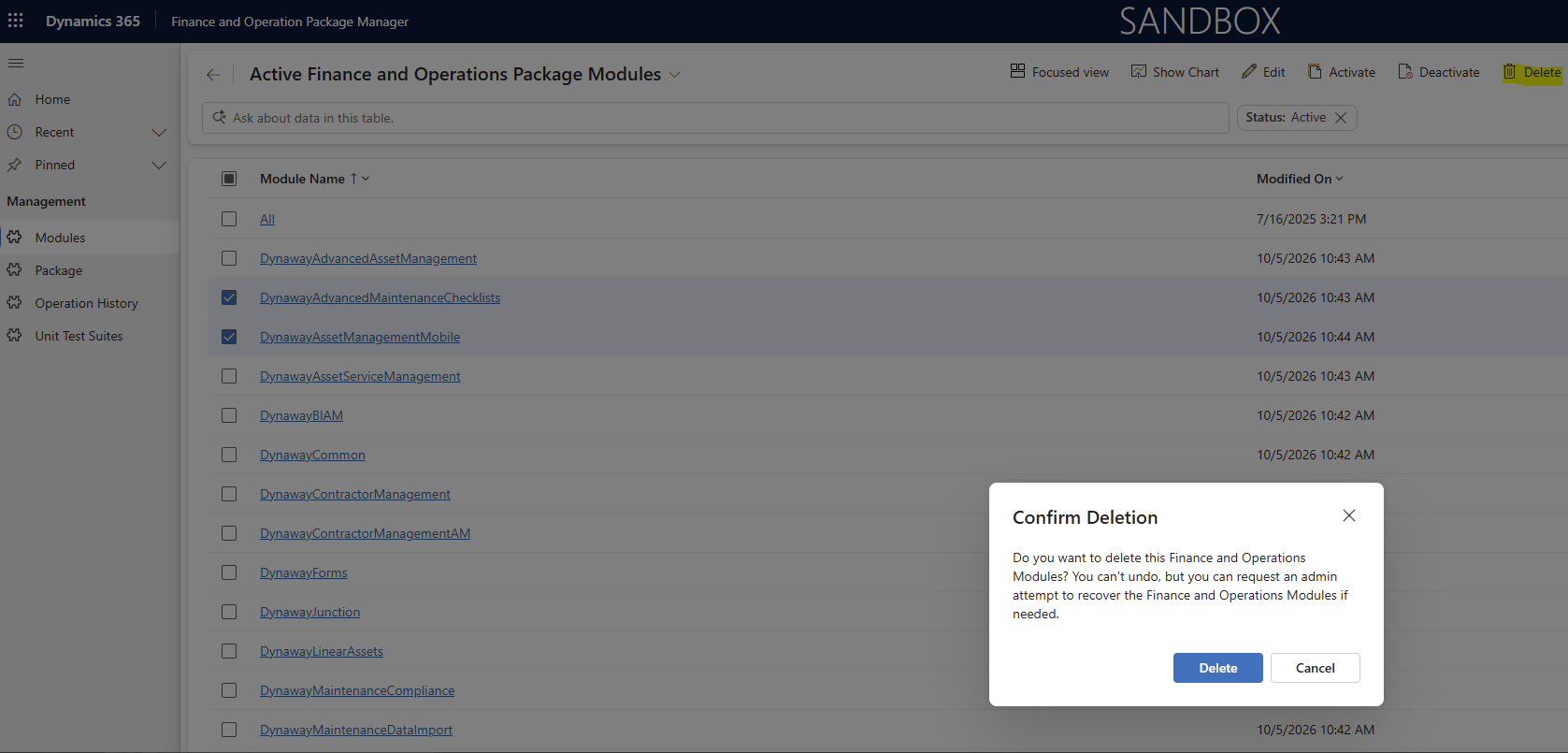
In your UDE/USE/UPE instance, there should be a Finance and Operation Package Manager app in your connected published apps.
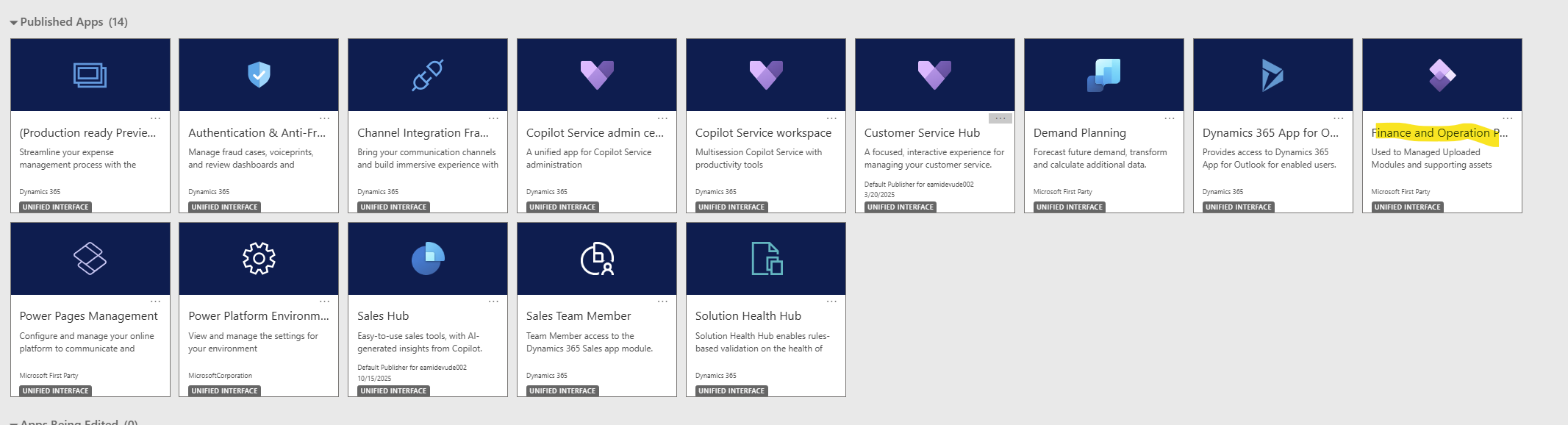
Under Modules in Finance and Operations Package Manager, you will be able to select individual deployed models and remove it. Then retriggering a latest pipeline with latest code, will the do the DB sync too.