
There is two thing to do.
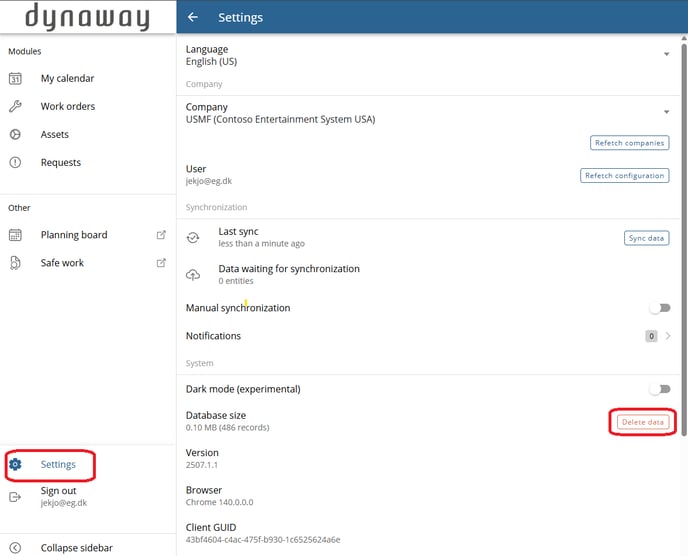
- Go to settings and Delete data
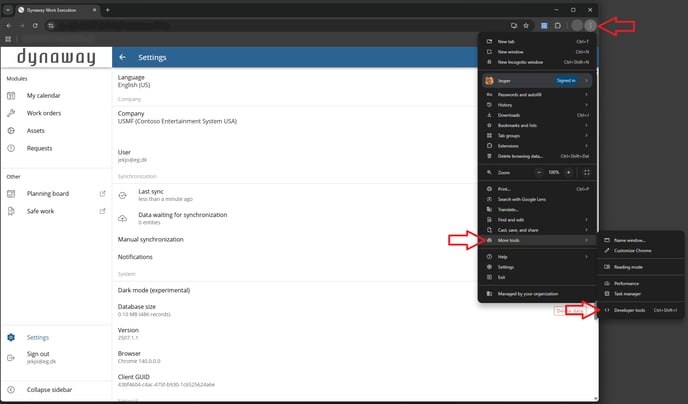
- Enter developer tools
- There is two ways to enter developer tools. You can hit F12 when you are on the site ore enter browser control keys for site - choose More tools and select Developer tools (see picture below).
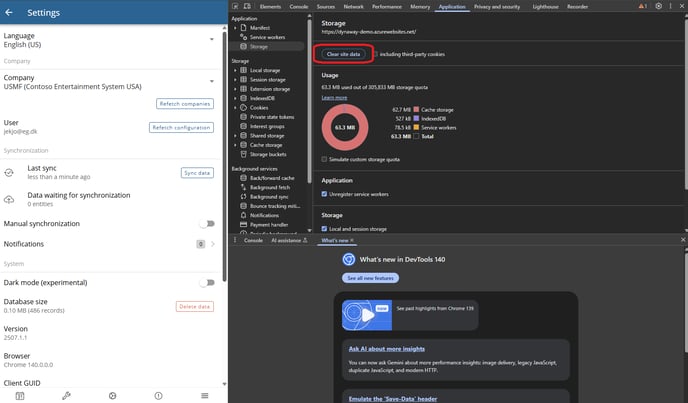
In the developer tool Clear site data.
We also recommend deleting your browser history and cache.
(Ctrl+Shift+Delete) on PC
Cmd+Shift+Delete on Mac
- Click the three dots (More) in the top-right corner.
- Go to More Tools > Clear browsing data.
- Select a Time range (e.g., All time).
- Check the boxes for Cached images and files and Cookies and other site
- dataClick Clear data and restart Chrome.
- Press Ctrl + Shift + Delete.
- Ensure Cached images and files and Cookies and saved website data are checked.
- Click Clear now, then close and reopen Edge.
- Press Ctrl + Shift + Delete.
- Choose a time range (e.g., "Everything").
- Check Cache and Cookies, then click OK.
- Enable the Develop menu: Safari > Settings (or Preferences) > Advanced > Show Develop menu in menu bar.
- With the Develop menu visible, go to Develop > Empty Caches.