1. Create user / check user is created
1.1 Go to System Administration > Users > Users
1.2 Make sure the worker is imported. You can search for the username.
1.3 If not, the user needs to be imported or created.
1.4 Assign the needed role to the user (e.g., maintenance worker/manager + Dynaway mobile user or Dynaway mobile administrator.

2. Create employee / check employee is created
2.1 Go to Human resource > Workers > Employees. Check for employee.
2.2 Create the employee if not created. Click "Hire and watch details"
2.3. (If resource has not been created) à Go to the user. Go to project > Project setup. This will automatically create the resource.

2.4 Go to Person > Skills and set up skills if required.
3. Setup calendar on the resource
3.1 Go to Organization administration > Resources > Resources
3.2 Go to the user and add a calendar with available working times.

4. Create link / check link is created between user and employee
4.1 Go to System administration > Users > Users and check if there is a link between the user and employee. If not, choose the employee.

4. Setup the worker in Asset Management
4.1 Go to Asset Management > Workers > Workers and add the worker.

5. Setup the worker in Dynaway Mobile
5.1 Go to Dynaway Mobile > Setup > Users and add the user. Make sure the user is enabled.
5.2 Add the users to relevant user groups if necessary.

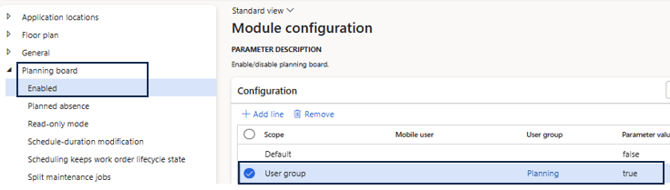
6. Check the Scheduling board is enabled
6.1 Go to Dynaway Mobile > Setup > Module configuration > Scheduling board > Enabled. Make sure the planning board is enabled for the correct users/usergroup/all.